
Adding playlists on IPTV can seem tricky at first, but with the right steps, you can enjoy your favorite channels, movies, and series in no time. At DEIPTV, we make it simple to manage your IPTV subscriptions and playlists with our easy-to-follow guides and reliable service.
1. Understanding IPTV Playlist Formats
Before adding a playlist, it’s important to know the types of formats available:
- M3U: A plain text file containing URLs to your media streams. Most IPTV apps support this format.
- M3U8: Similar to M3U but with UTF-8 encoding, ideal for international channels.
- XSPF: XML-based format used for advanced setups.
Playlists can include absolute URLs (e.g., http://…) which are more reliable, or relative URLs, which may cause compatibility issues. Always ensure your IPTV player supports the file type, usually .m3u or .m3u8.
2. Adding an M3U Playlist to Your IPTV Player
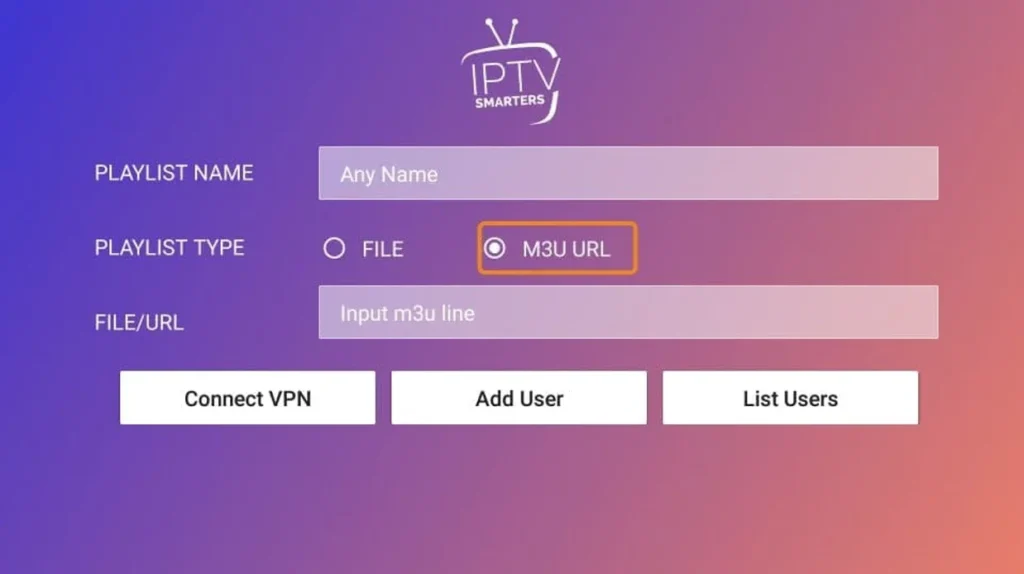
You can add playlists in several ways:
- Import via URL: Paste your M3U/M3U8 link directly into the IPTV player.
- Upload a Local File: Browse and upload a playlist saved on your device.
- Use the App’s Playlist Manager: Some apps let you scan a QR code or sync from cloud storage.
Tips if the playlist fails to load:
- Make sure your internet connection is stable.
- Check that the playlist format matches your app’s requirements.
- Ensure the link isn’t expired or geo-blocked.
For a detailed guide on installing IPTV apps and adding playlists, check our step-by-step tutorials:
3. Using Xtream Codes API (Alternative Method)
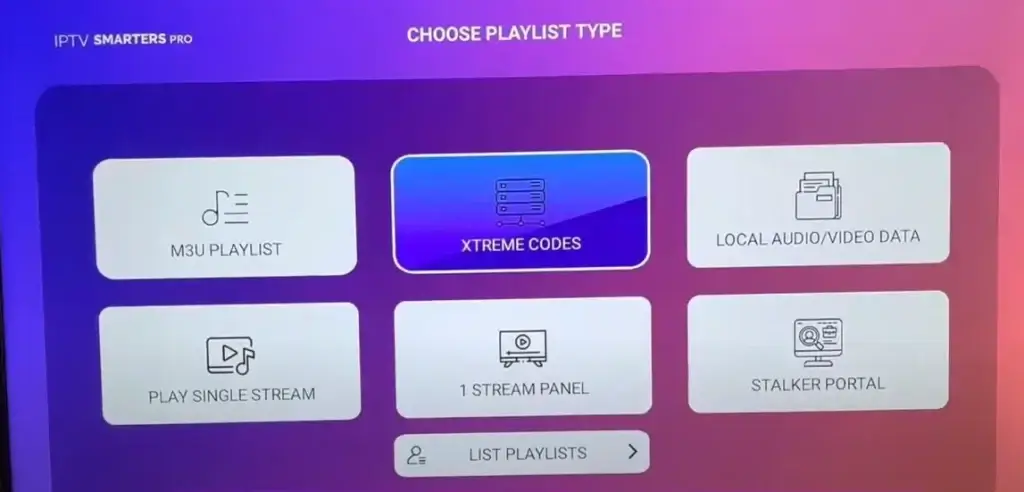
Instead of M3U playlists, many apps support Xtream Codes API. You’ll need three credentials from your IPTV provider:
- Server URL (without trailing slashes)
- Username
- Password
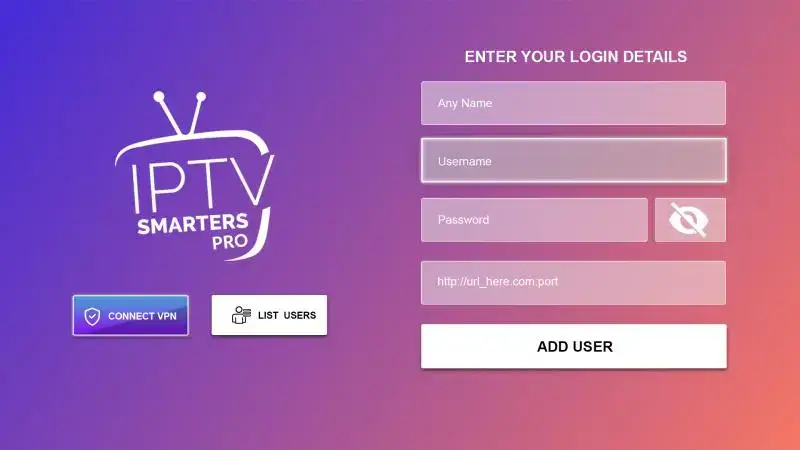
Steps:
- Open your app’s settings → choose Xtream Codes Login or API Integration.
- Enter your credentials (case-sensitive).
- Test the connection and save.
- If channels don’t appear immediately, restart the app.
For more IPTV setup tips, visit our Complete IPTV Setup Guide 2026.
4. Troubleshooting Playlist Issues
If your channels aren’t loading properly, try these solutions:
- Confirm internet stability and firewall settings.
- Check playlist format compatibility (M3U, M3U8, XSPF).
- Clear your app’s cache and update to the latest version.
- Open the playlist URL in a browser to test.
- Replace shortened URLs with direct links.
- Verify your subscription and ensure your provider’s servers are online.
5. Managing and Organizing Multiple Playlists
To enjoy a smooth viewing experience:
- Create separate folders (e.g., sports, movies, series).
- Use clear labels with provider name, date, or content type.
- Set priority lists so favorite channels appear first.
- Merge similar playlists and remove duplicates using your app’s grouping features.
- Enable automatic sorting by genre, country, or language.
- Regularly update or delete expired playlists for better performance.
For more advanced tips on finding the best IPTV services, see our Top 10 Best IPTV Services in the USA for 2026.
Frequently Asked Questions
Is it legal to add third-party playlists?
Check that third-party providers have proper broadcasting rights. Without licensing agreements, you may violate copyright laws. Research your local regulations before proceeding.
How often should I update my IPTV playlist?
Weekly updates are recommended. If you notice buffering or dead links, update immediately. Most providers refresh content daily.
Can I share my IPTV playlist with family?
Yes! Use your provider’s multi-device settings, create separate profiles, and monitor connection limits.
What internet speed is required?
- HD streaming: Minimum 10 Mbps
- 4K streaming: Minimum 25 Mbps
Can Smart TVs use IPTV playlists without extra devices?
Some models support playlists directly via IPTV apps. If not, external devices like Android boxes or streaming sticks may be required.
At DEIPTV, we make managing playlists and subscriptions easy and reliable. Explore our Pricing, FAQ, and Contact pages for more information, or learn more About Us to see why thousands of users trust DEIPTV for their IPTV needs.
Start enjoying seamless streaming today at DEIPTV.